
Wi-Fi plug with energy meter: add, switch, check usage
Add the Wi-Fi plug to the app, switch what's plugged in from anywhere, and see power and energy used — with step-by-step screenshots.
Updated:
The Wi-Fi plug connects straight to your home Wi-Fi — no smart hub needed. Great for water heaters, water purifiers and anything you want to schedule or track the electricity cost of.
Screenshots show the app in Vietnamese. The English app has the same screens, with the buttons in the same places.
What you need
- Your Wi-Fi name and password. The plug uses 2.4 GHz Wi-Fi.
- A new plug is usually in setup mode as soon as it’s plugged in. If the app can’t find it: hold the button on the plug for 5 seconds (the light blinks slowly, then quickly).
Add the plug to the app
- Home → +, tap the plug in the list.
- On Select Wi-Fi for the device, choose your home Wi-Fi, enter the Wi-Fi password and tap Set up Wi-Fi. Wait about half a minute.
- When the app shows Paired: tap ✎ and name it after what it powers, e.g. “Water heater plug”, then tap Done.
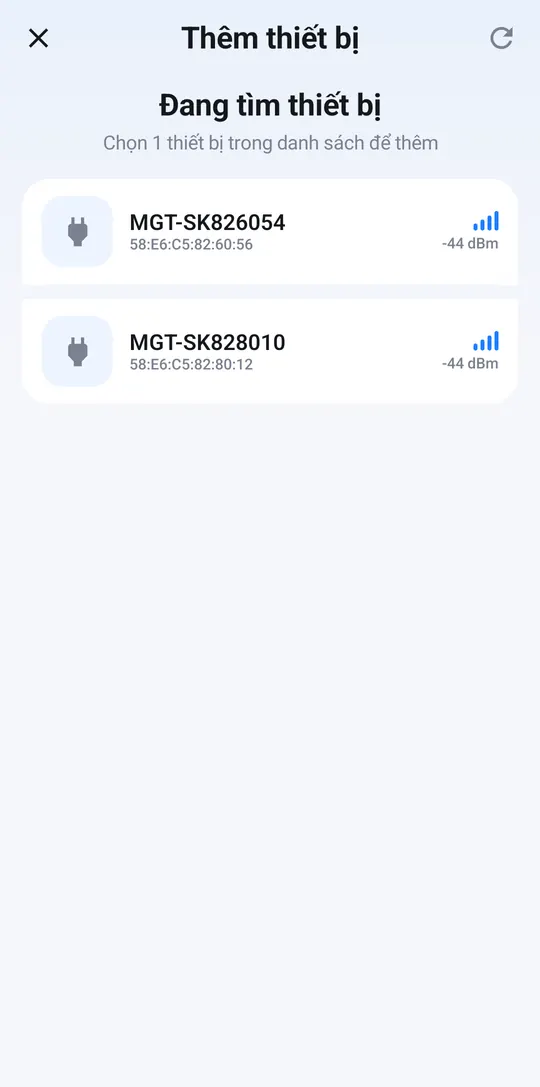
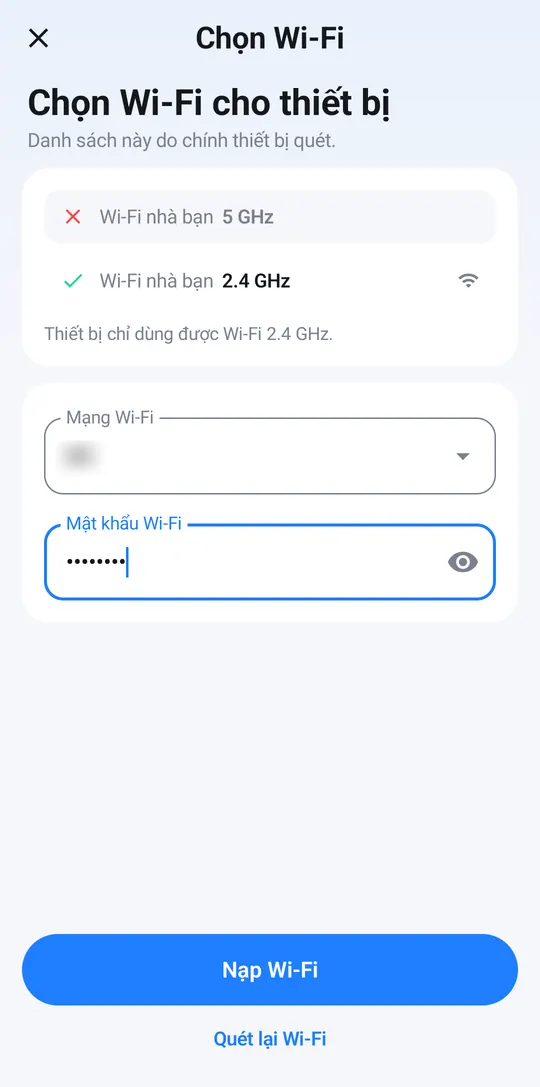
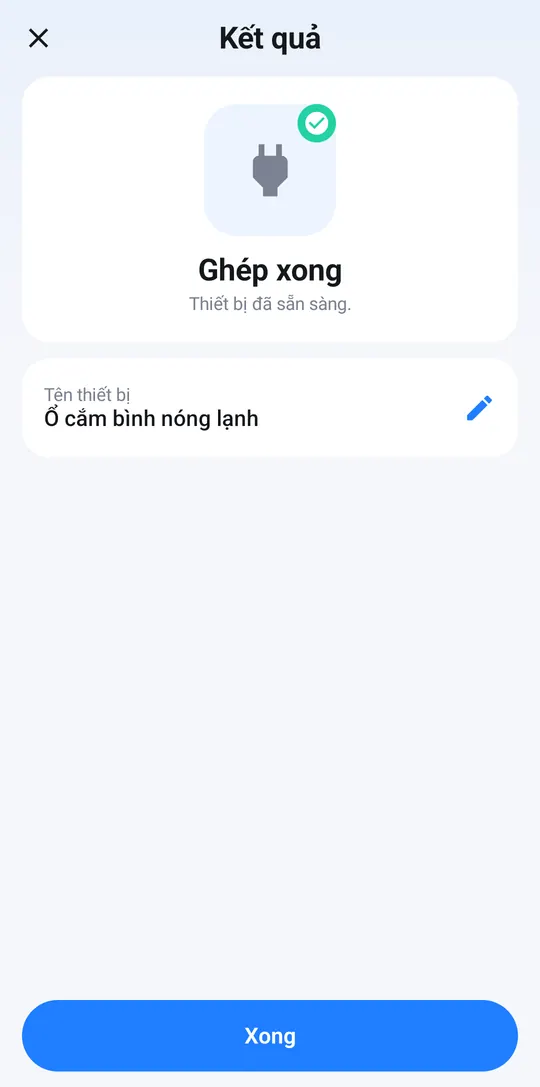
Wi-Fi errors (wrong password, 5 GHz network…)? See the table in Set up the smart hub — it works the same way.
The plug’s page
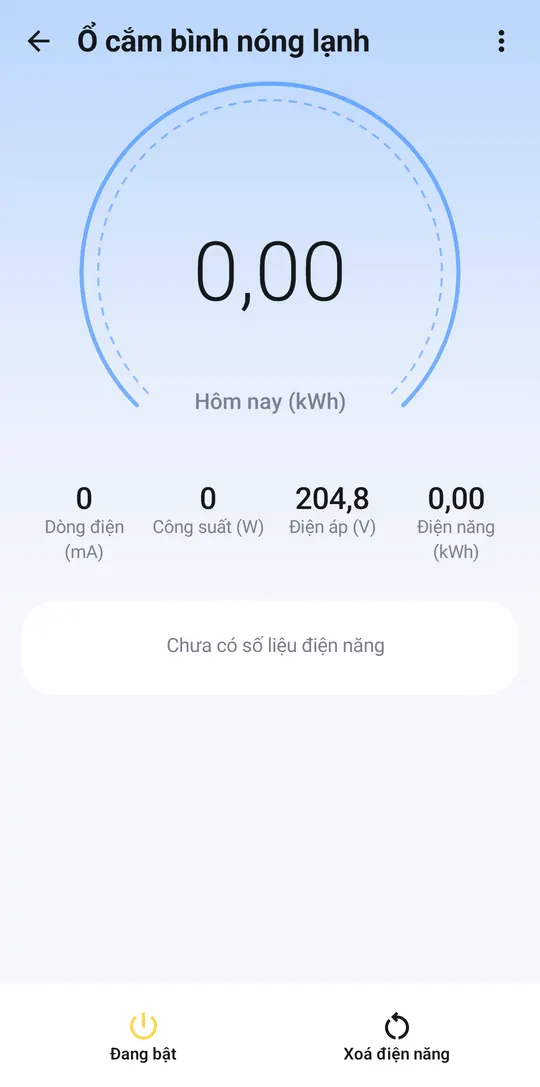
- The big number in the middle: energy used today (kWh).
- The row below: current, power being drawn (W), voltage and total energy.
- The On / Off button in the bottom bar switches the plug. The plug’s card on Home also has a quick switch.
- Reset energy: start counting energy from 0 again, e.g. at the start of each month.
You can also use the plug in Automations, e.g. turn the water heater on at 5:30 every morning.