
Create and run Scenes
Scenes set many devices with one tap: create them in the app, assign them to a wall switch, run them while away — with screenshots.
Updated:
A Scene remembers how several devices should be — e.g. “Bedtime”: living room and bedroom lights both off; “Coming home”: both lights on. Run the Scene and everything changes together.
Screenshots show the app in Vietnamese. The English app has the same screens, with the buttons in the same places.
Create a Scene
- Go to Scenes → +, enter a Scene name and tap Create.
- Under Device states, tap + (Add Bluetooth light) and choose a light.
- Tap each light, set it the way you want (on / off, brightness…) and tap Save. A row that still says it is not saved has not been stored in the Scene yet.
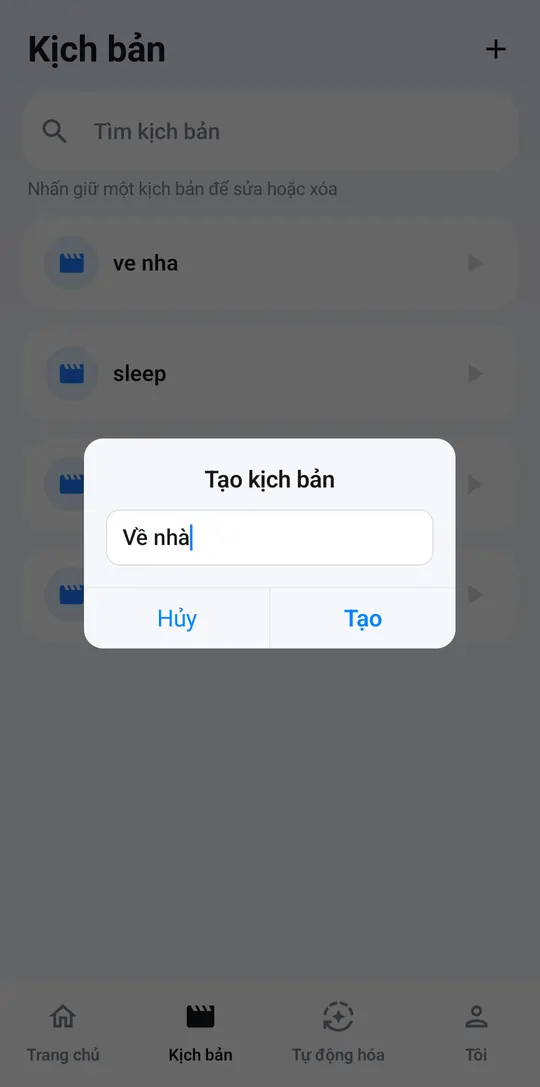
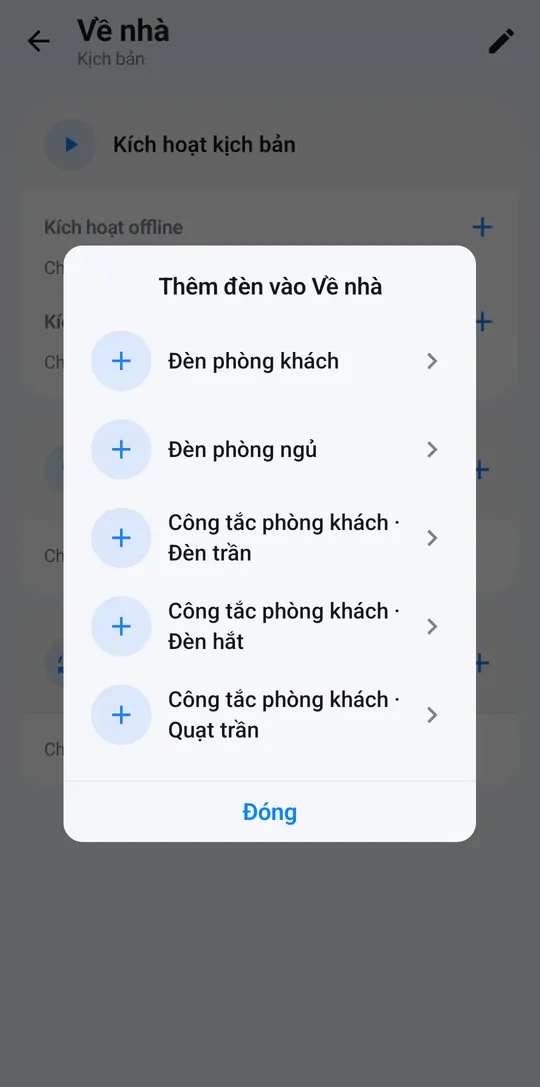
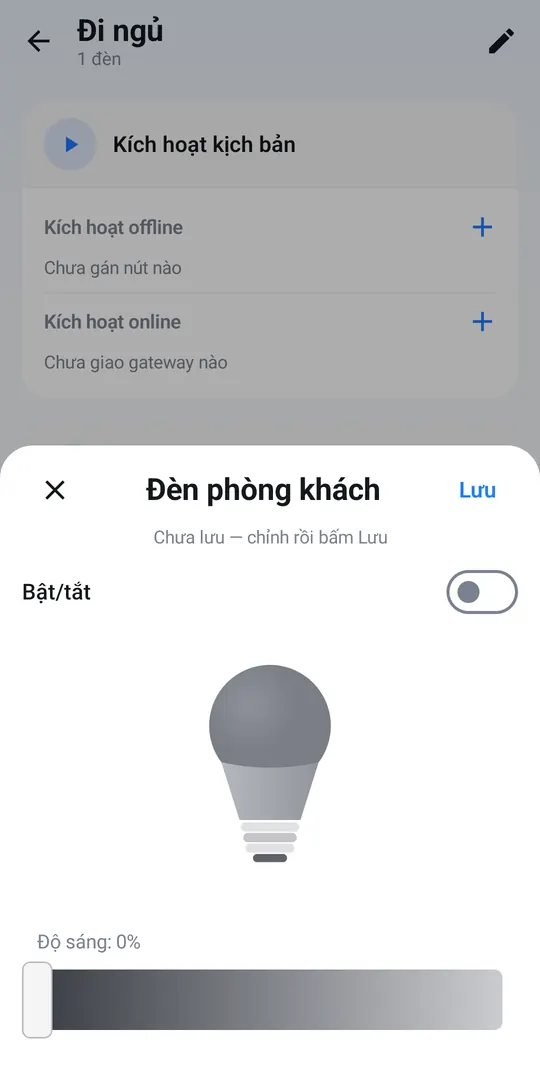
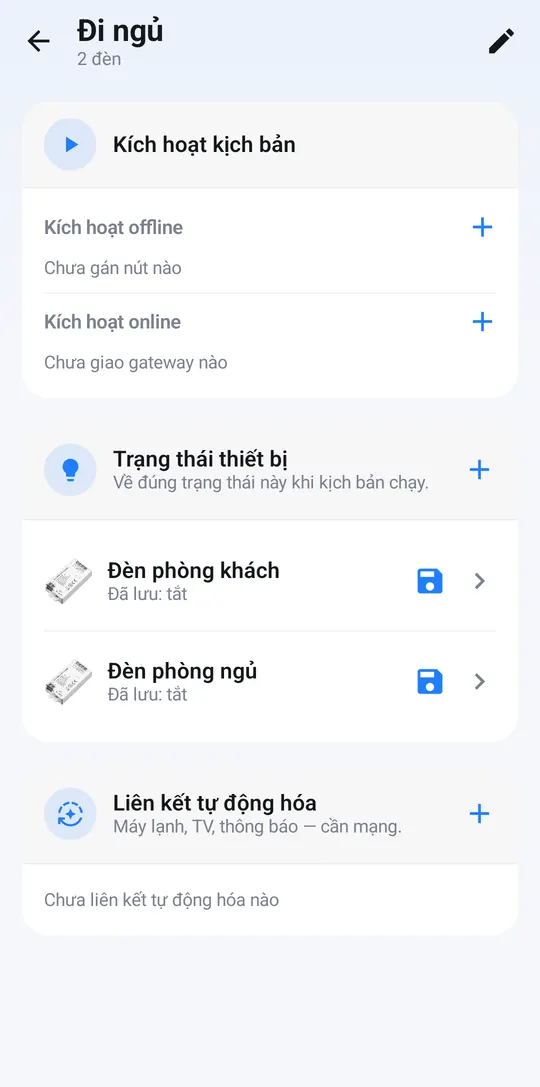
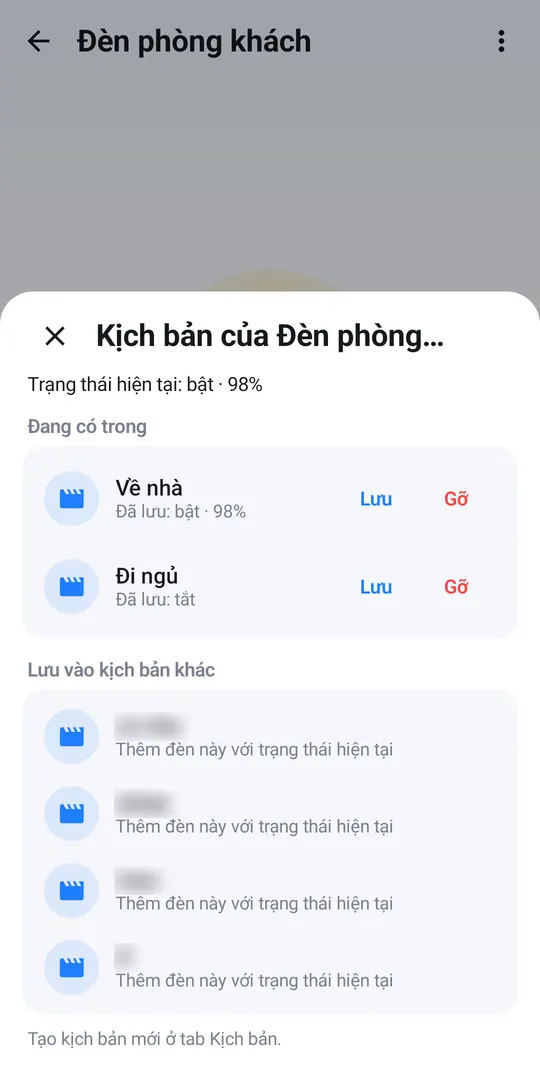
Shortcut: set a light the way you like on its own page and tap Scenes in the bottom bar. The panel shows which Scenes the light is in; tap Save to update one, or pick a Scene under Save to another scene.
Ways to run a Scene
- In the app: tap ▶ on the Scene card, or Activate scene on the Scene page.
- With a wall switch: under Offline activation, tap + (Assign wall button) and pick a button. Pressing it runs the Scene — even without Internet. See Scene switches.
- While away: under Online activation, choose your smart hub so the Scene can be run remotely.
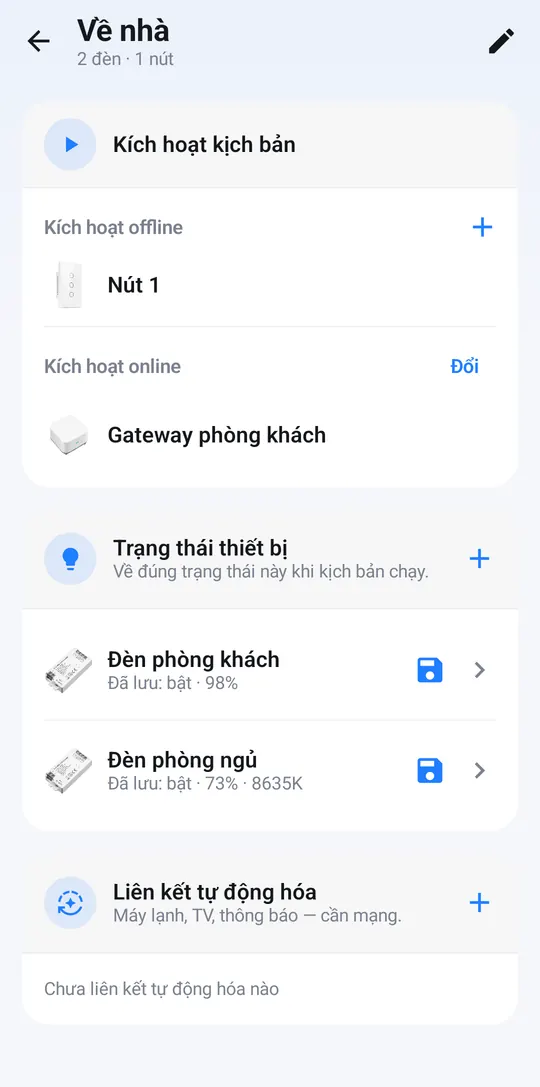
Without Internet, the app can still run a Scene’s lights and switches while you are at home. Air conditioner, TV and notification steps run once you are back online.
Add AC, TV or notifications to a Scene
Linked automations lets a Scene also turn on the air conditioner, switch off the TV or send a notification. See Automations.
Good to know
- Each light can be part of up to 6 Scenes.
- Creating, editing and deleting Scenes requires “add & delete” permission. Press and hold a card for Edit scene / Delete scene.