
Automations: schedules and device triggers
Let your home run itself: turn lights on at a set time, get alerts when a device goes offline, run Scenes, send notifications — with screenshots.
Updated:
An automation is an If … Then … rule — e.g. “If it’s 6 pm, then turn on the living room light”. Set it once and your home does it every day.
Screenshots show the app in Vietnamese. The English app has the same screens, with the buttons in the same places.
Create an automation
-
Go to Automations → +.
-
If → Add condition, then choose:
- Scheduled — a fixed time of day.
- Device state changes — e.g. a switch was turned on, a device goes Offline, the temperature is Greater than a value.
- Scene is run.
With several conditions, choose When all conditions are met or When any condition is met.

Create automation screen 
Pick a condition type 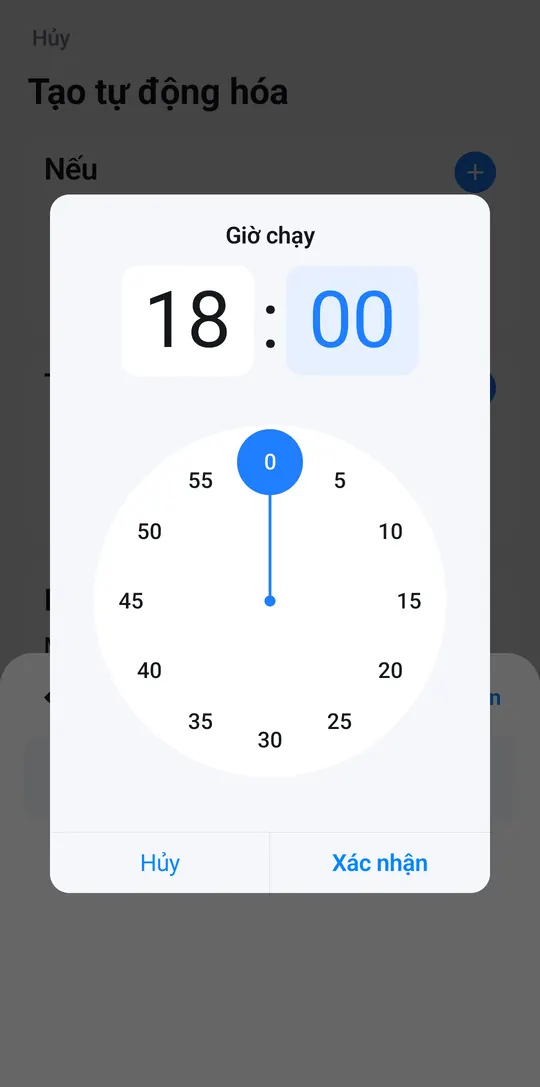
Scheduled: pick the time, confirm -
Then → Add action: control a Device, Run scene, Wait (5 seconds to 15 minutes), Send notification to everyone’s phone, or Infrared (AC, TV).
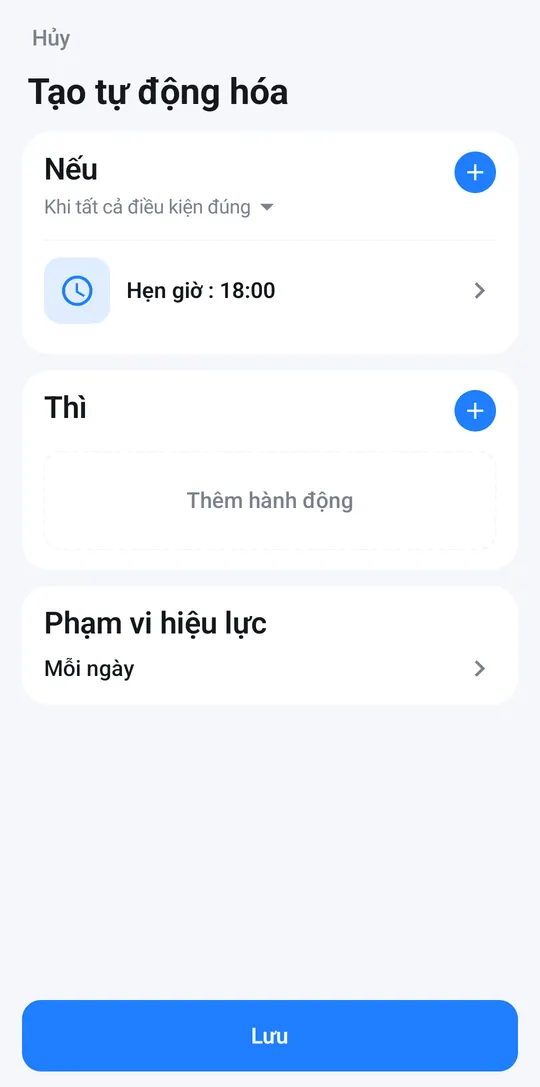
Condition added 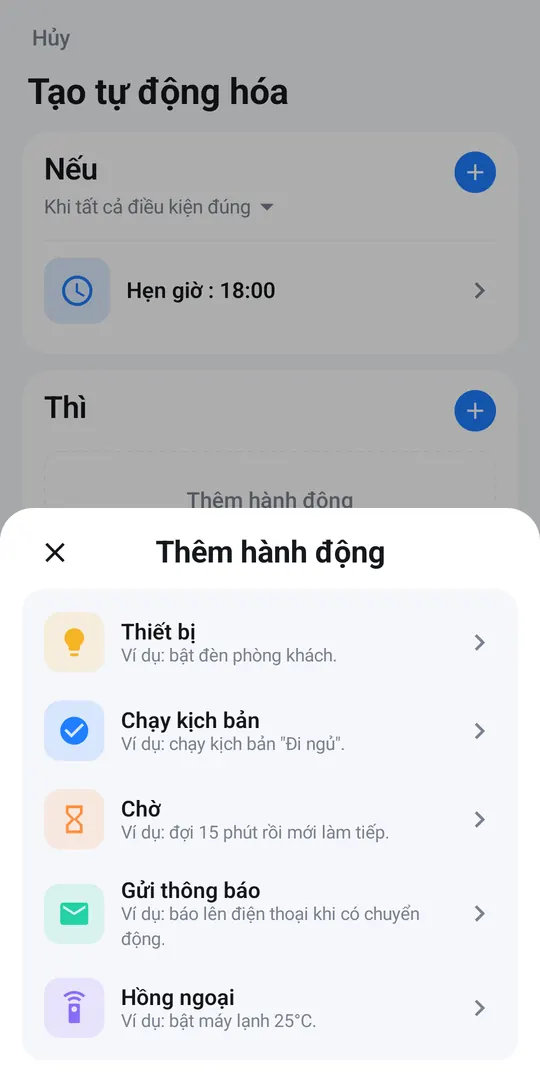
Pick an action type 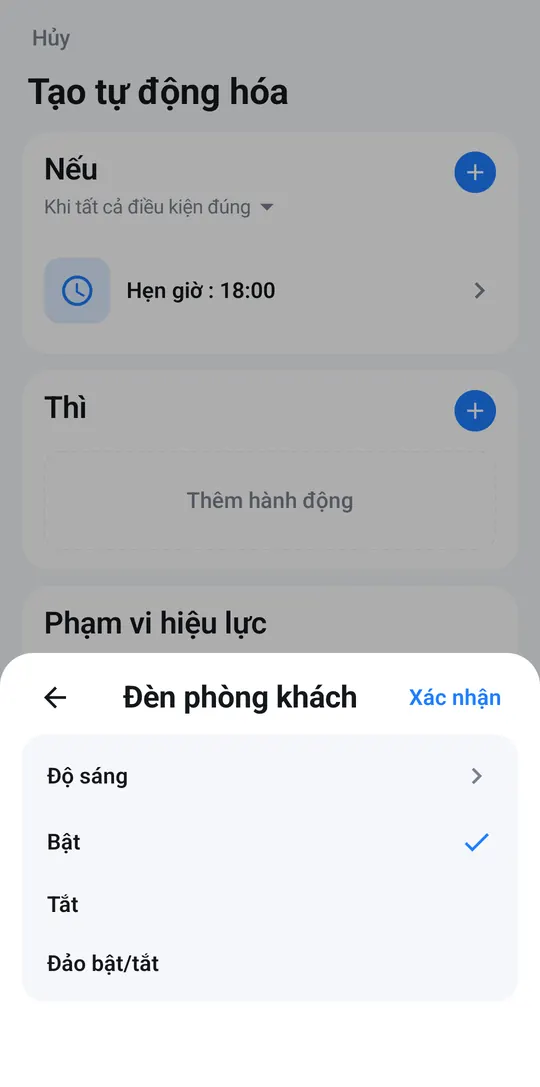
E.g. living room light → On -
Active period: pick the days — Every day, Monday to Friday, Weekends or Custom. For conditions other than a schedule, also choose All day or a Time window (overnight works too, e.g. 18:00 → 06:00).
-
Tap Save, enter an Automation name and tap Save.
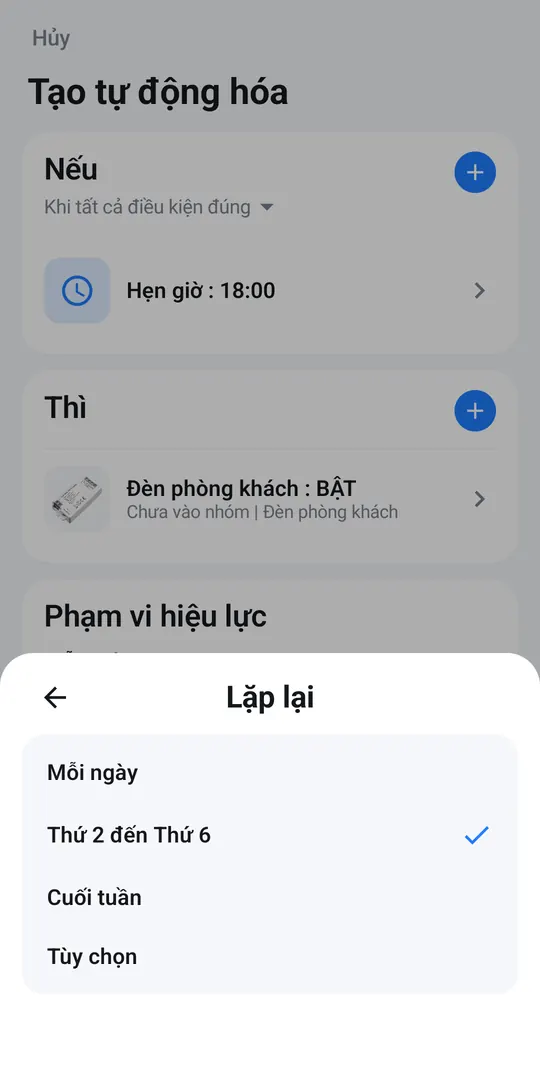
Pick the days 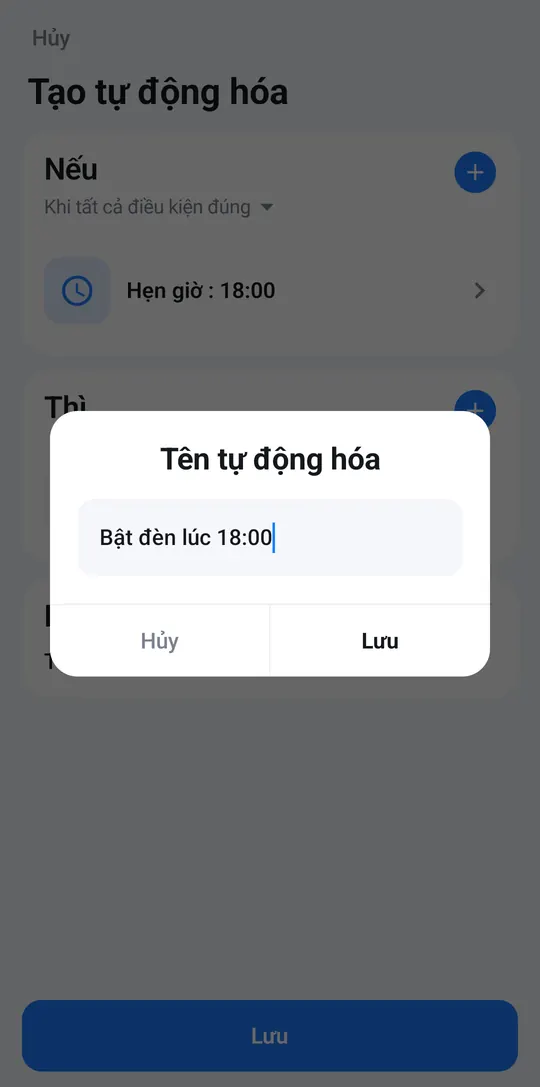
Name it, then Save 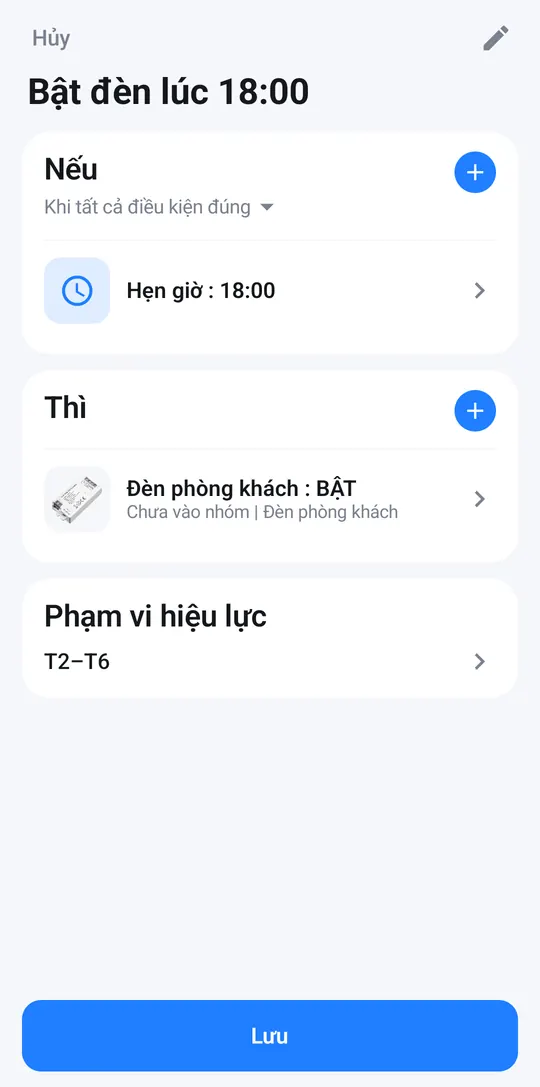
A complete automation
Popular examples
- Lights on at dusk: Scheduled 18:00, Monday to Friday → Then turn on the living room light.
- Cool home on arrival: Scheduled 17:30, Monday to Friday → Then turn on the living room AC.
- Offline alert: Device state changes → pick a device (e.g. the hallway sensor) → Offline → Then send a notification.
- Bedtime: Scheduled 23:00, Every day → Then run the “Bedtime” Scene and send “Ground floor lights are off”.
Managing automations
- The switch on each card turns that automation on or off.
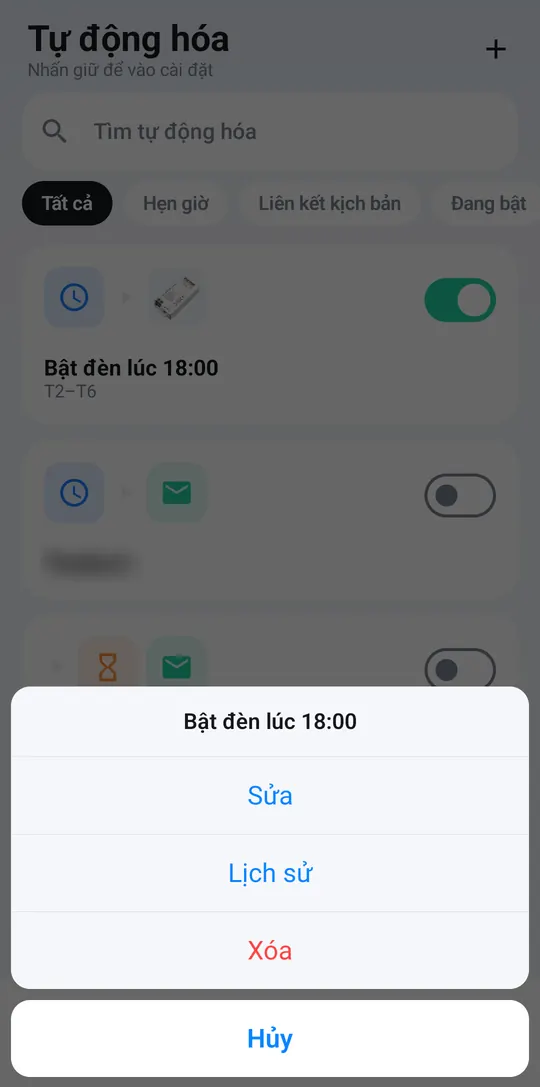
- Press and hold a card for Edit, History (when it ran) and Delete.
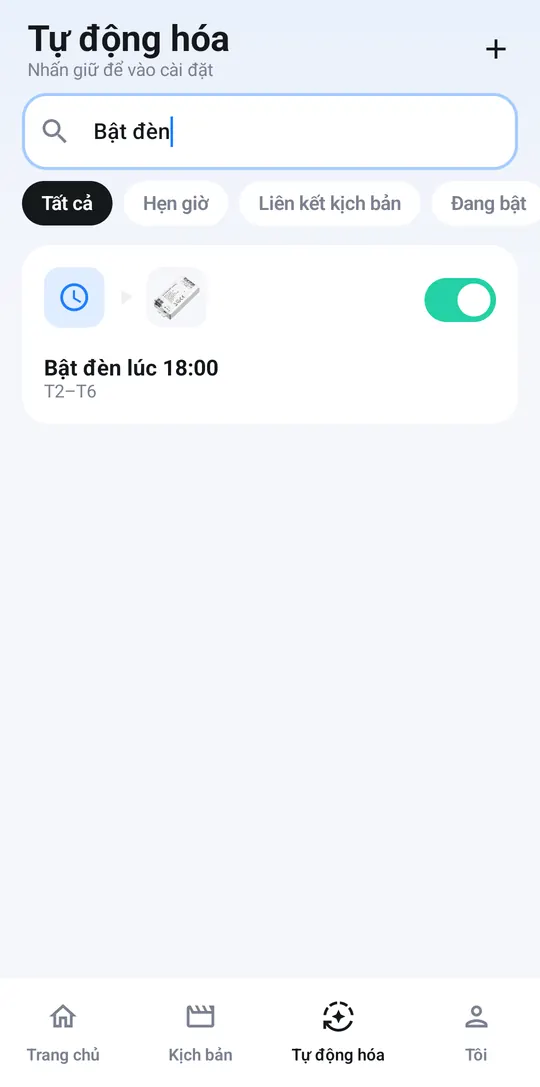
Automations need an Internet connection at home and the smart hub online. Times follow your home’s time zone (Me → Time zone).