
Smart switches: add to the app, name each button
Add a smart wall switch to the app, name each button and switch each appliance from your phone — with step-by-step screenshots.
Updated:
A smart switch replaces your old wall switch. You still press it by hand as usual, and can also switch things from your phone. Each button controls its own appliance (ceiling light, accent light, fan…).
Screenshots show the app in Vietnamese. The English app has the same screens, with the buttons in the same places.
Put the switch in setup mode
Newly installed switches are usually ready. If the app can’t find it: press and hold all keys together until the indicator blinks quickly, release, then press and hold again until it blinks slowly.
Add the switch to the app
-
Home → +, tap the switch in the list and keep your phone close.
-
When the app shows Paired (with the switch’s number of buttons): tap ✎ and name it after its location, e.g. “Living room switch”.
-
On the Gateway line, tap Change and pick your home’s smart hub so you can control it while away. Tap Done.
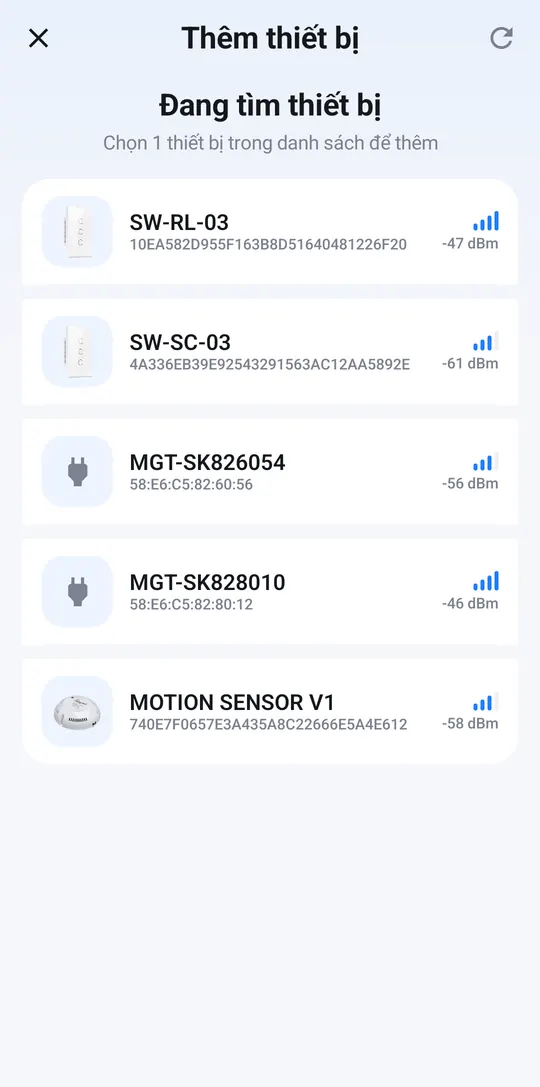
Tap the switch in the list 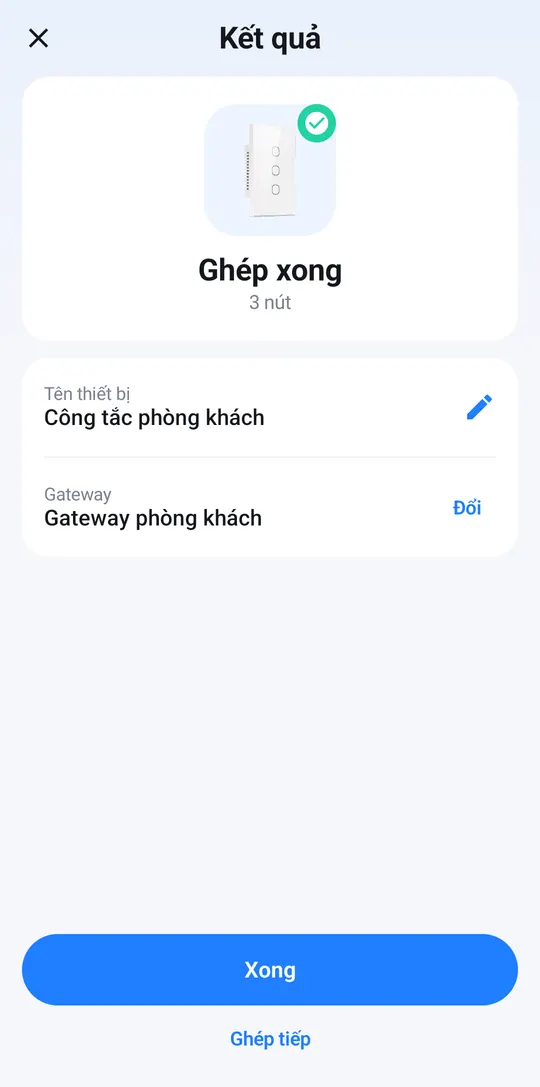
Name it and pick the smart hub
Name each button
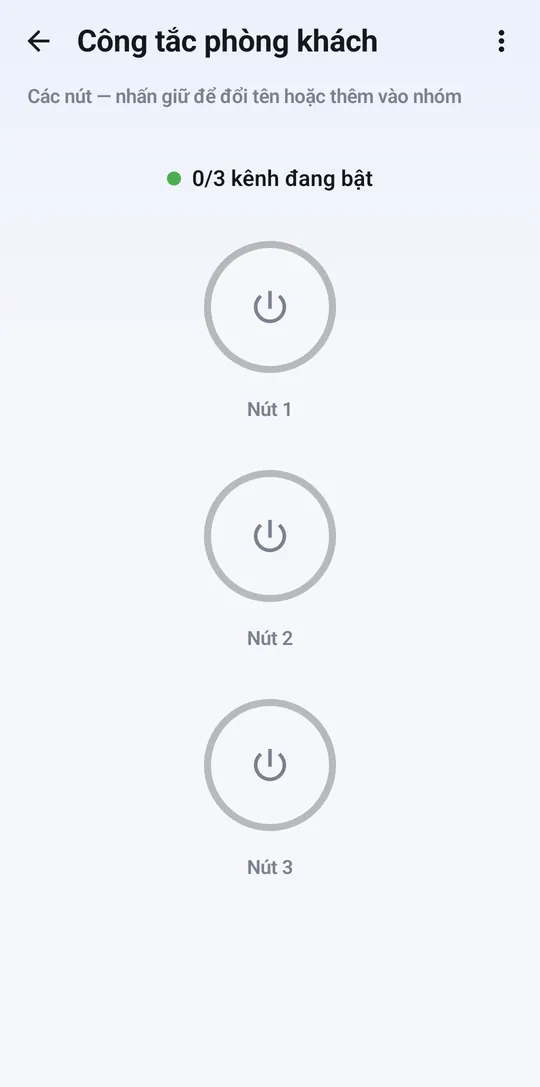
New switches show Nút 1, Nút 2, Nút 3 (Button 1, 2, 3). Rename them after what they control:
- Open the switch from Home.
- Press and hold the button you want to rename and choose Rename.
- Type the new name, e.g. “Ceiling light”, and tap Save.
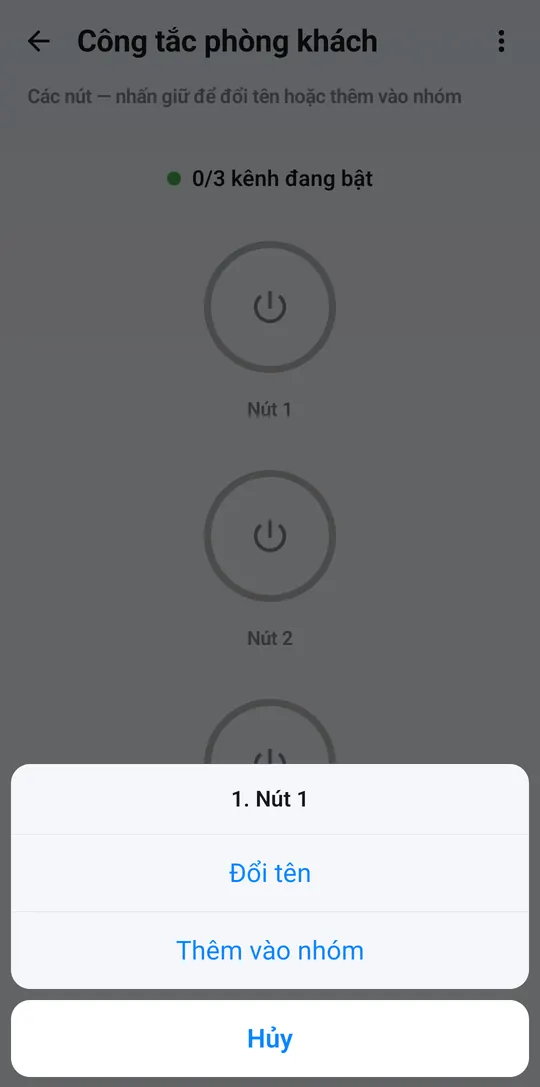
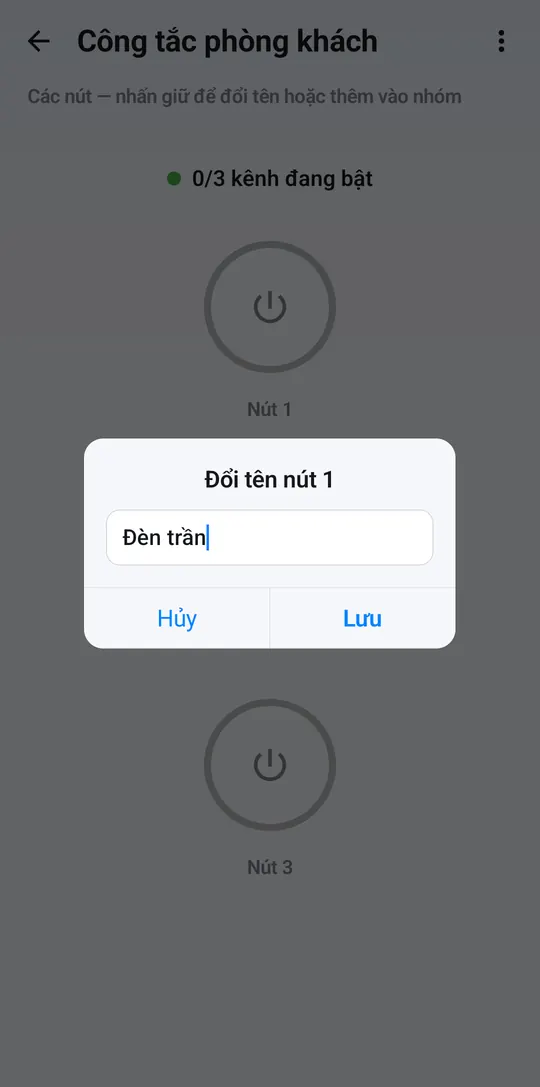
From the same press-and-hold menu, Add to group puts just that button in a room group, so it switches together with other lights.
Switch each button
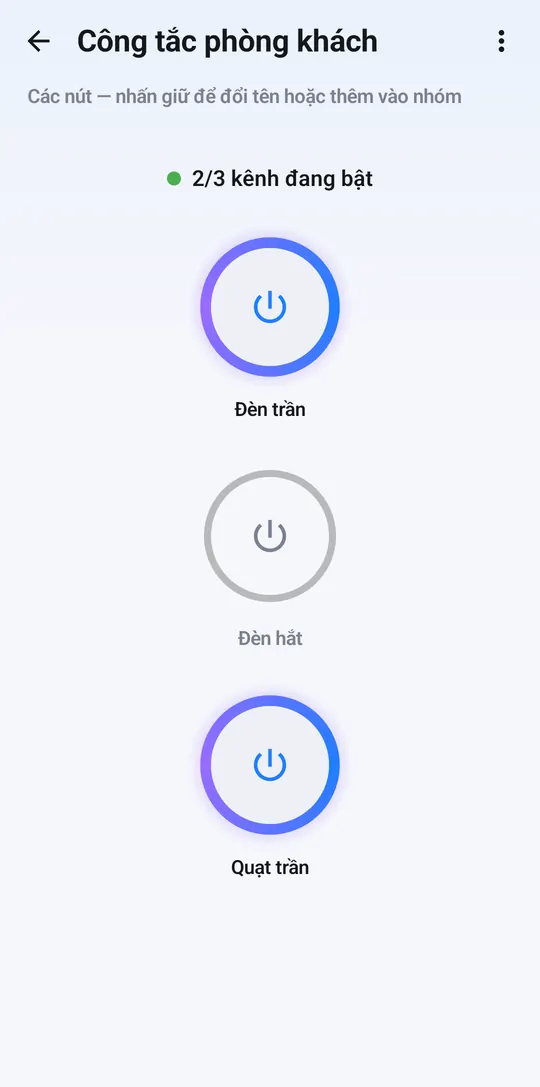
Tap a button’s circle to switch it on or off. Buttons that are on have a blue ring; the line at the top shows how many are on.
Pressing the wall switch by hand updates the app too.
Next steps
- Group buttons by room: Control devices and groups.
- Want one press to switch a whole set of devices? See Scene switches.